Stream Display Settings
Customize how your live stream displays photos and videos.
Good to Know
Designed for large screens: The live stream page is designed to be displayed on a projector, TV, or large monitor at your event. For help connecting to a display, see our projector setup instructions.
Viewing on mobile: For a mobile-friendly gallery to share with guests, use the dedicated Gallery page. Sign in to your account to find the gallery link for your event.
Finding the Settings
Look for the gear icon in the bottom-right corner of your live stream page. Click or tap it to open the settings menu.
Tip: Click the X button or the gear icon again to close the settings menu.
Settings Reference
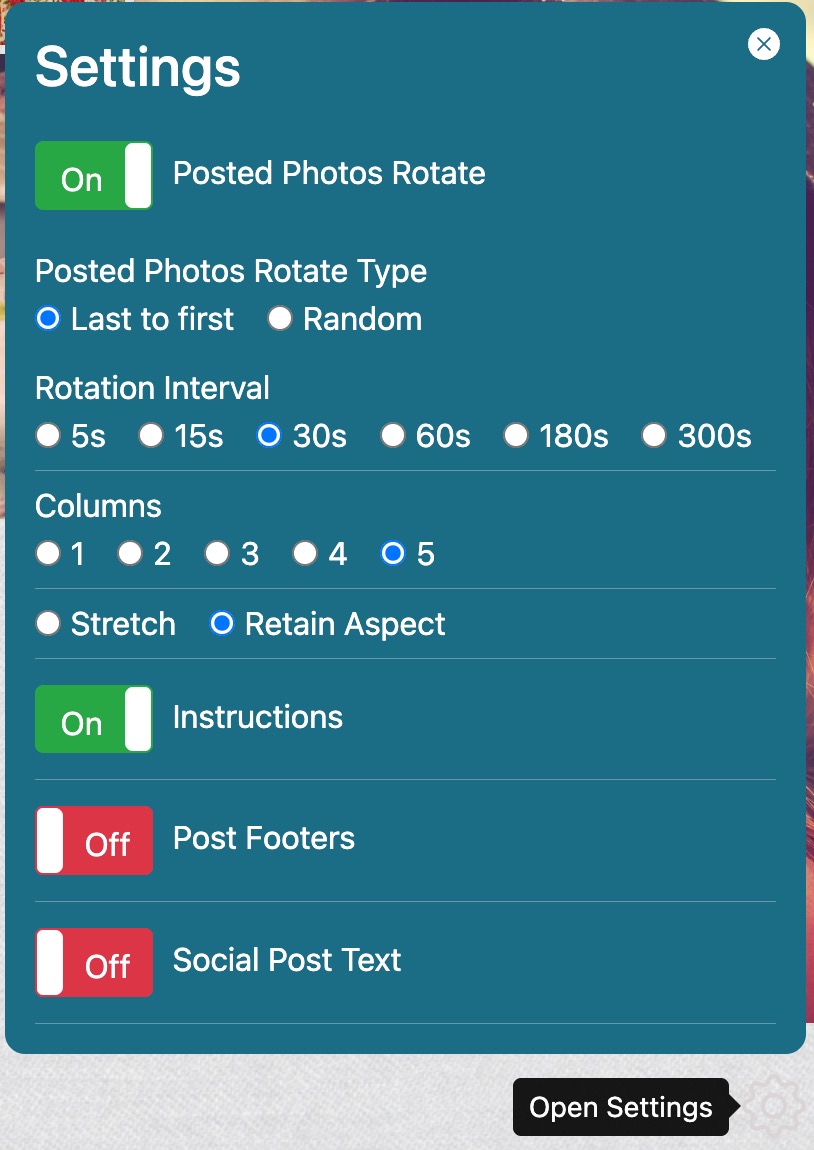
| Setting | Default | Description |
|---|---|---|
| Posted Photos Rotate | ON | Automatically cycles through photos, bringing older ones back to the top |
| Rotate Type | Last to first | Choose sequential or random rotation order |
| Rotation Interval | 30 seconds | How long each photo displays before rotating (5s to 5 min) |
| Columns | 5 (desktop) / 1 (mobile) | Number of photo columns in the grid |
| Stretch / Retain Aspect | Retain Aspect | Keep original photo proportions or stretch to fill |
| Instructions | ON | Show/hide the guest instruction banner at the bottom |
| Post Footers | OFF | Show source icon and hashtag under each photo |
Note: Settings reset to defaults when you refresh the page.