Event Host Guide
What each part of PhotoStream.Live does, and the options available to you.
Contents
How it works
Before your event
Settings and customization
After your event
How it works
The posting window
Your event page and emails show the exact dates for QR collection, MMS and media access.
- QR uploads: choose a posting window of up to 3 months on Standard or 6 months on Complete.
- MMS: choose a separate posting window of up to 7 days on Standard or 14 days on Complete, for events in the US and Canada.
- Gallery, display and downloads: Standard 6 months; Complete 12 months from the first enabled collection window opening.
How your dates fit together
Example booking with QR and MMS turned on. Not to scale.
- Event details lock 24 hours before the earlier of your event and first collection window.
- QR uploads: up to 3 months on Standard or 6 months on Complete.
- MMS: a separate window of up to 7 days on Standard or 14 days on Complete.
- Gallery, display and downloads: 6 months on Standard or 12 months on Complete from the first collection window opening.
For new paid bookings, posting opens and closes at the times selected during setup, with no automatic early opening. Posting must end within your media-access period. Posts sent outside the window are not accepted.
Existing bookings keep their original terms, including any early setup allowance. Follow the exact dates on your event page and in your emails. Free demos follow the posting and media-access dates shown on their own event page.
How guests post
Guests do not need an app or an account. There are two channels, set when you create your event.
QR guest upload
Guests scan your event QR code with their phone camera, or open the upload page link directly. Both lead to the same upload page, where they choose photos or videos from their phone and send them. Available for events anywhere.
MMS US and Canada only
Guests text photos and videos to a phone number assigned to your event after payment. It appears on your event page, printable cards and guest instructions once it is ready.
What guests see
Posting by QR code on a phone.
-
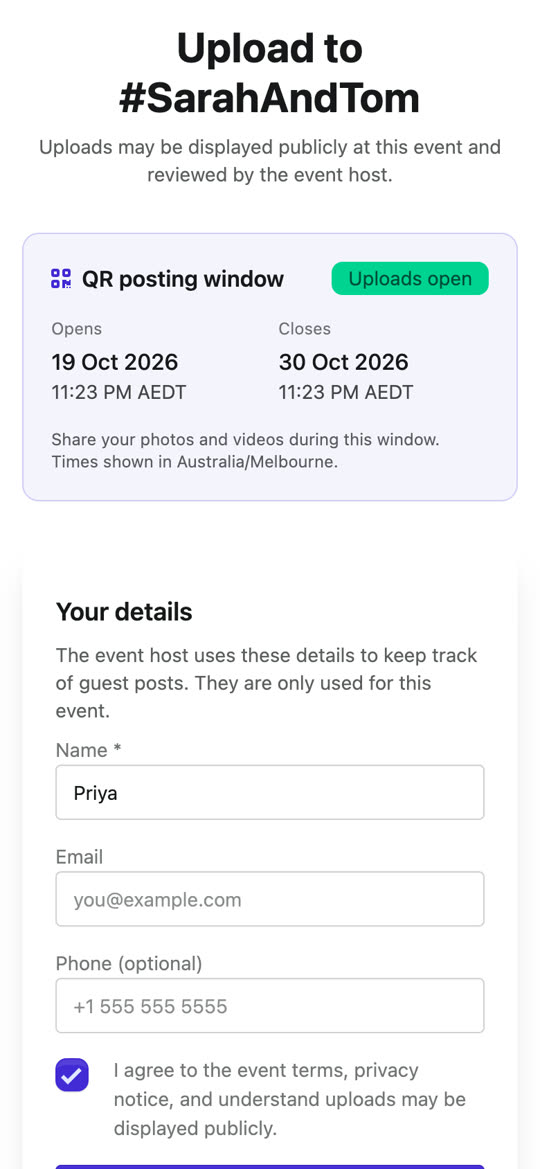
1. Scan the QR code or open the upload link, then enter their details and accept the terms.
-
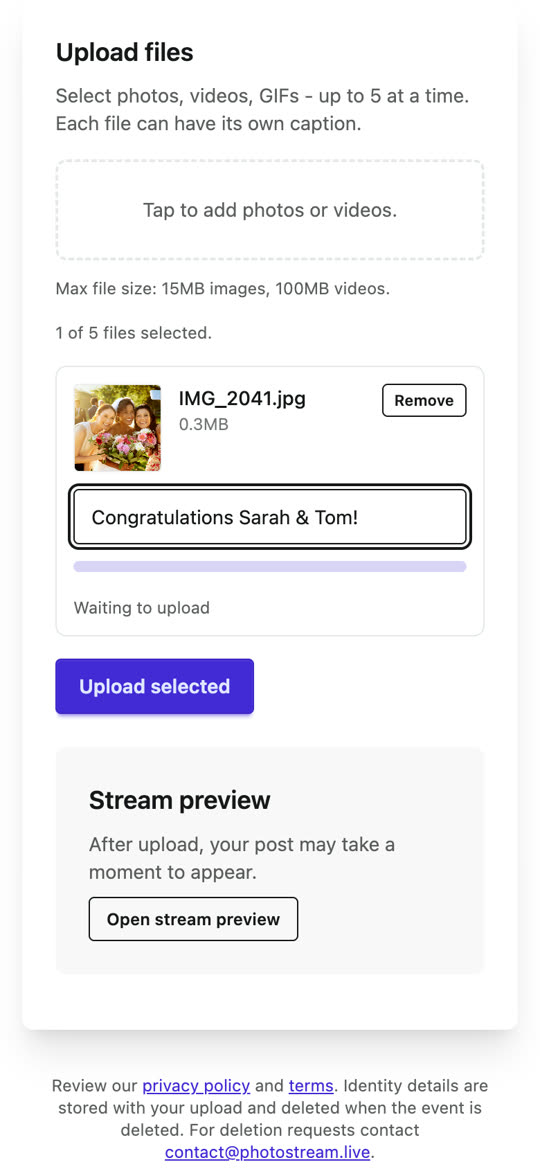
2. Choose up to five photos or videos at a time, each with an optional caption.
-
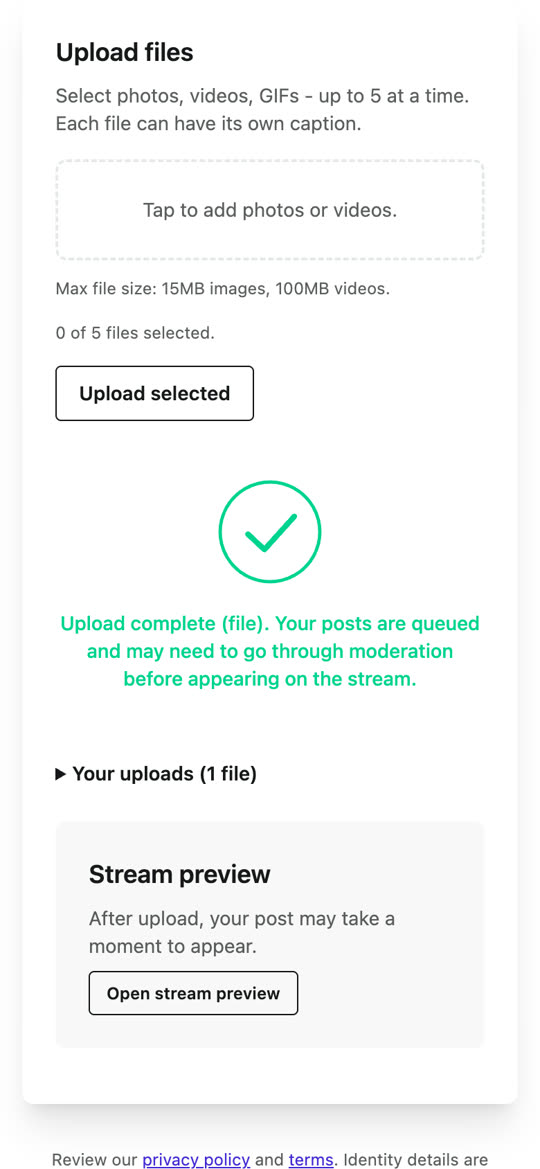
3. Upload. The post goes on the stream, or waits for approval if moderation is on.
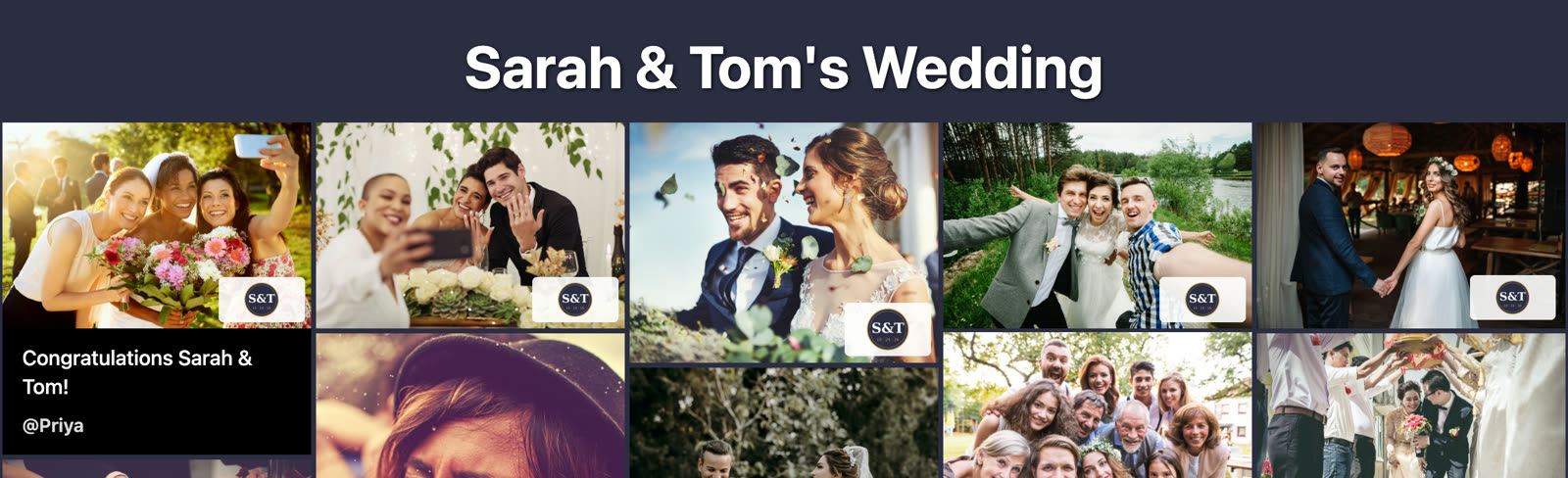
Moments later, the post appears at the top of the live stream.
Both channels feed the same stream, the same gallery and the same download.
Which channel should you turn on?
You do not have to choose. Both are set when you create your event, so most hosts turn on whichever ones their guests will actually use.
| MMS | QR guest upload | |
|---|---|---|
| Available in | US and Canada | Anywhere |
| Connectivity needed | Mobile signal; no venue Wi-Fi | Mobile data or Wi-Fi |
| Access controls | — | Open, password or email verified |
| Captions | — | Caption field |
| Feeds the live stream | Yes | Yes |
| Included in the download | Yes | Yes |
MMS suits guests who are least comfortable with new interfaces and venues with reliable mobile coverage but unreliable Wi-Fi. QR guest upload works for events anywhere with internet access and is the only channel that can collect guest names or restrict who can post.
Before your event
Memory photos
Memory photos are photos and videos you upload yourself, rather than ones guests send in. You add them from Manage Live Posts on your event page.
They appear on the stream alongside guest posts, so the stream has something to show before any guest has posted. You can upload them before the event or while it is running, and archive them like any other post.
Printable QR cards
Printable cards show your event QR code and posting details. Download them from your event page in three sizes:
- Letter and A4 — full page, for walls and signage.
- 4 × 6 — card size, for tables.
The cards include your MMS number if your event has one. If it is still being assigned, generate the cards again once the number appears on your event page.
You do not have to print anything. The QR upload page has its own link, which you can share digitally instead — in a group chat, an invitation, or an email. It opens the same upload page as the QR code.
What locks 24 hours before
Setup locks twenty-four hours before the earlier of your event start and first enabled collection window. You can still view your schedule, but event details, posting routes and moderation configuration can no longer be edited. Existing bookings keep their original setup deadline.
Locked 24 hrs before
- Date, time and timezone
- Posting channels (QR code and MMS)
- Moderation setting
Editable at any time
- Layout, columns and image sizing
- Rotation on/off, order and speed
- Captions and source icons
- QR access mode, guest name and limits
- On-screen instructions and QR display
- Branding and gallery visibility
- Memory photos
To change something in the locked list after that point, reply to any of our emails.
Changing package. A Standard event can be upgraded to Complete from your Event Details page or the event card on your events dashboard, up until setup locks. You pay the difference between the two package prices. Your confirmation shows the longer collection, MMS and media-access dates. Moderation and branding are included too. If your MMS number changes, replace printed instructions with the updated version. After setup locks, reply to any of our emails.
Settings and customization
These are all on the Stream Settings page for your event, and can be changed at any time, including while your event is running.
QR access and limits
Access mode
Controls what a guest has to do before they can upload. Three options:
- Open — no check. Anyone who opens the upload page can post.
- Password — the guest enters a password that you set and share.
- Email — the guest enters an email address and clicks a link sent to it.
Require guest name
On or off. When on, the guest enters a name before uploading. The name is shown with their posts if captions are on.
Show captions on stream
On or off. Controls whether guest names and captions appear in a strip under QR posts on the stream.
Upload limits
Two optional caps. Both are blank by default, which means no limit.
- Max uploads per session — how many a guest can send in one sitting.
- Max uploads per event/day — how many can be sent to the event per day.
Terms
Guests always accept the terms before their first upload. This is not optional and there is no setting for it.
Stream display and branding
These control how the stream looks on screen. What you set here is how the stream loads; anyone viewing it can also adjust the display from the gear icon on the stream page itself.
Layout
- Columns — how many photos across the grid.
- Image sizing — retain aspect ratio, or stretch to fill.
Rotation
- On or off — whether the stream cycles through older posts.
- Order — last to first, or random.
- Interval — how long each photo shows before rotating.
QR code on the stream
- Display mode — overlay, footer rotation, footer pinned, or hidden.
- Overlay position — which corner or edge it sits in.
- QR size — small, medium or large.
Other display options
- Instructions — show or hide the guest instruction banner at the bottom.
- Source icons — show or hide a small badge on each post for how it arrived: QR code, MMS or memory photo.
- Days display limit — limit the stream to posts from the last N days.
Branding Complete package
Included with the Complete package and free demos.
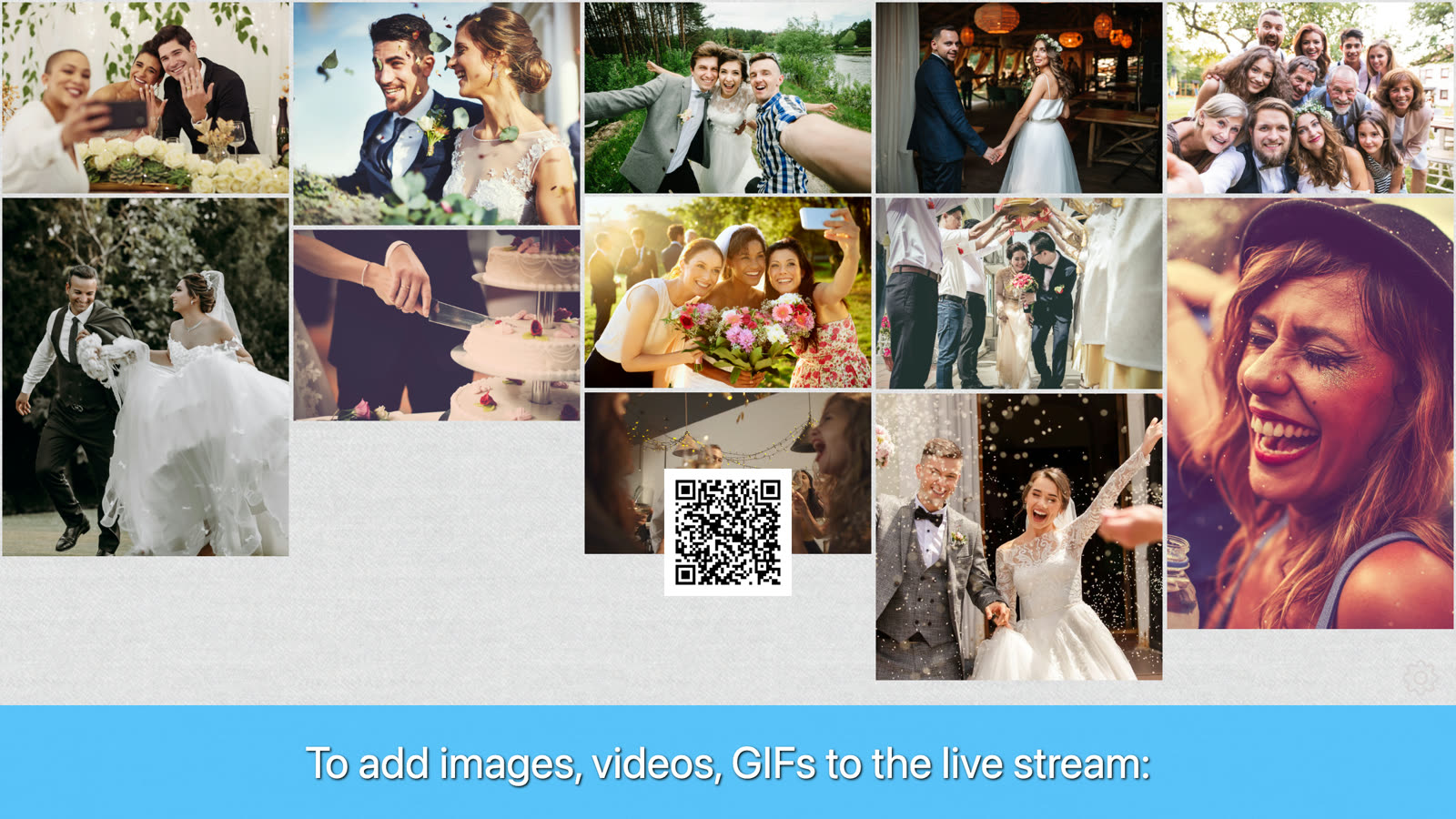
The same stream, with and without branding
Title, solid background, footer text and colour, logo and logo watermarks.
Default
With branding
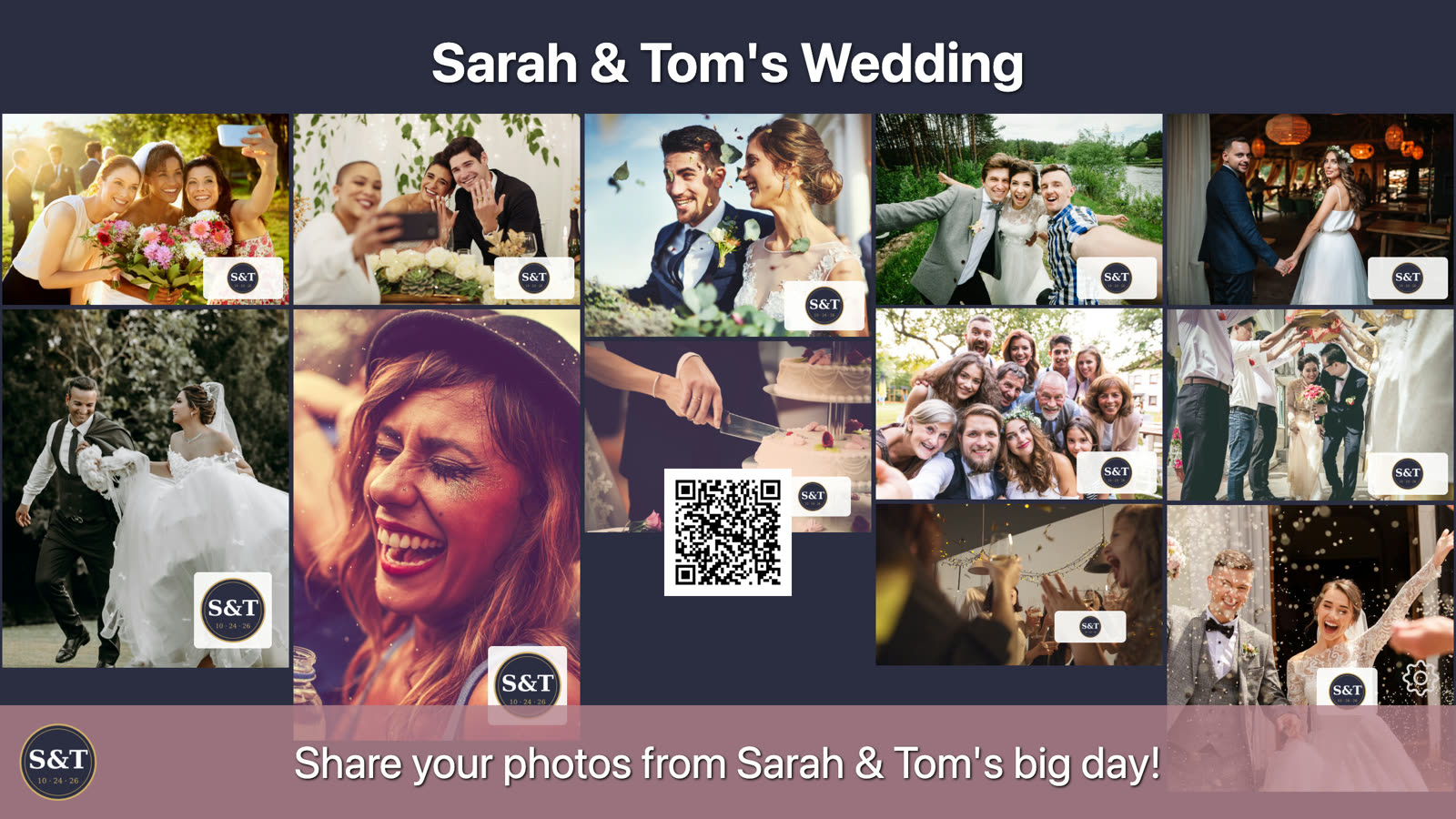
- Stream title — shown at the top of the stream and in the browser tab, with its own colour, size, font weight and text shadow.
- Footer instructions — replaces the default text in the instruction banner, with its own text colour and an optional footer background colour.
- Background — the PhotoStream pattern, black, or a solid colour.
- Logo — your logo in the stream footer. PNG, JPEG, GIF or WebP, up to 2MB.
- Logo watermarks — your logo over photos and videos on the live stream, the gallery, or both, in one of nine positions, with an optional light background. Original files and downloads are unchanged. Requires a logo.
Every display setting explained → — with defaults for each one.
On the day
Putting it on a big screen
The live stream is a web page, built for a projector, TV or large monitor. Open the link on the device connected to the screen and put the browser in full screen.
The stream updates on its own as posts arrive, so it can be left running for the whole event.
Projector and TV setup instructions → — HDMI, Apple TV, Chromecast, phones and laptops.
Moderation
Moderation controls whether posts go on the stream automatically or wait for your approval. It is chosen when you create your event live stream, or set in Event Details, and locked 24 hours before your event or its first collection window starts. Free demos set it in Free Stream Setup instead, where it can be changed at any time.
Off
Every post goes on the stream as it arrives.
AI moderation
Every post is checked automatically. Posts that pass go on the stream. Posts that do not pass are held in Moderate Posts and do not appear until you decide on them.
Manual moderation
Every post is held in Moderate Posts. Nothing appears on the stream until you approve it.
Working the queue
For each held post you have two options:
- Approve — the post goes on the stream.
- Archive — the post stays off the stream and out of the gallery.
You can act on posts one at a time, or select several and approve or archive them together. Neither option deletes anything — see Archiving and managing posts.
Archiving and managing posts
How you manage posts
Archiving hides a post. It does not delete it.
A post archived before approval returns to moderation when you unarchive it.
Manage Live Posts lists your approved, non-archived posts, newest first. It is available on every event, with or without moderation.
Archiving
Archiving a post removes it from the stream and the gallery. You can archive one post, or select several and archive them together.
Archiving does not delete. Archived posts move to Archived Posts, stay there as long as your event media is kept, and can be included when you generate a download. Select Include archived posts on the download page to add them to your ZIP.
Unarchiving
From Archived Posts, select posts and unarchive them. Posts that were live return to the stream and gallery. A post archived before approval returns to moderation.
Uploading your own posts
You can upload photos and videos yourself from Manage Live Posts at any time, including during the event. They appear on the stream like any other post.
After your event
Collecting and sharing your photos
The scheduled event end does not close the display or gallery. QR uploads, MMS and media access continue until the exact dates shown for your booking.
Download
Open Download from your event's card, choose whether to include archived posts or posts awaiting moderation, then generate the zip. We build it in the background and email you when it is ready. If new posts arrive afterwards, the download page will offer to regenerate it.
Stats and export
Stats shows posting activity over time, which channels guests used, media types and contributor activity. The full posting history can be exported as a CSV.
Gallery
The gallery is a mobile-friendly page where guests can browse and download the event's photos themselves, without an account. It is hidden until you turn on gallery visibility in Stream Settings.
Opening a post shows it full screen with its caption. Guests can swipe between posts on a phone, zoom into photos and download the original file. When new posts arrive, the gallery offers a refresh instead of moving the page while someone is browsing.
How long we keep your photos
How long your media stays available depends on your package:
| Package | Media available for |
|---|---|
| Standard | 6 months |
| Complete | 12 months |
The period starts when the first enabled collection window opens. It covers the gallery, live display, individual media and generated downloads. Your event page and emails show the exact deadline.
What is removed
Generated download zips, every post in Manage Live Posts and Archived Posts, the gallery, and the media behind your stats. The posting history CSV export is not media and is not affected.
We email you a week before the date, and again the day before. A zip you have already downloaded is yours and is not affected.
More help
All help and host guidesDisplay on a TV or projector
Connections, browsers, full-screen mode, sleep settings and venue troubleshooting.
View the display guideLive stream display settings
Layout, image sizing, timing, post details, instructions and QR code visibility.
View display settingsFrequently asked questions
Quick answers on guest uploads, MMS posting, moderation, downloads, retention and pricing.
Read the FAQsSharing with guests? Guest posting instructions.
Still stuck? Contact us and we will help you sort it out before your event.