Stream Display Settings
Customize how your live stream displays photos and videos, and brand it with your event's name, colors and logo.
Good to Know
Designed for large screens: The live stream page is designed to be displayed on a projector, TV, or large monitor at your event. For help connecting to a display, see our projector setup instructions.
Viewing on mobile: For a mobile-friendly gallery to share with guests, use the dedicated Gallery page. Sign in to your account to find the gallery link for your event.
Finding the Settings
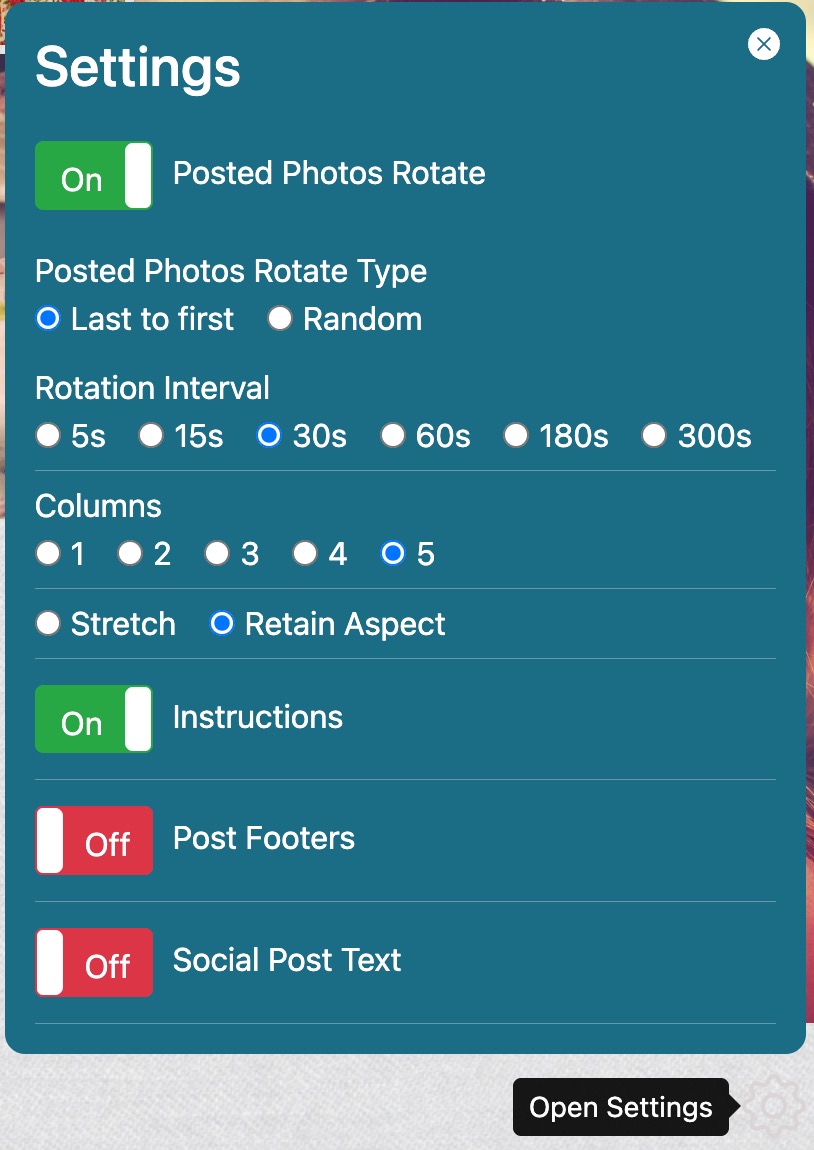
Look for the gear icon in the bottom-right corner of your live stream page. Click or tap it to open the settings menu.
Tip: Click the X button or the gear icon again to close the settings menu.
Settings Reference
| Setting | Default | Description |
|---|---|---|
| Slideshow Mode | — | One-click preset: single column, rotation on, instructions hidden — ideal for projectors |
| Reset to Event Defaults | — | Discards adjustments made on this screen and restores the defaults saved in your event's stream settings |
| Posted Photos Rotate | ON | Automatically cycles through photos, bringing older ones back to the top |
| Rotate Type | Last to first | Choose sequential or random rotation order |
| Rotation Interval | 30 seconds | How long each photo displays before rotating (5s to 5 min) |
| Columns | 5 (desktop) / 1 (mobile) | Number of photo columns in the grid |
| Stretch / Retain Aspect | Retain Aspect | Keep original photo proportions or stretch to fill |
| Instructions | ON | Show/hide the guest instruction banner at the bottom |
| Post Footers | OFF | Show source icon and hashtag under each photo |
| Captions | ON | Show caption text added by guests under their photos |
| QR Display | — | Control how the upload QR code appears on this screen: show or hide it, display it as an overlay or in the footer, and set its position and size |
Note: Defaults for these settings can be saved per event from the Stream Settings page. Adjustments made on a screen are remembered on that device until you use Reset to Event Defaults or the event's saved defaults change.
Event Defaults & Branding
Event hosts can save default display settings and add custom branding from the Stream Settings page. Sign in to your account, open your event, and choose Stream Settings.
The display defaults (columns, image sizing, rotation, instructions footer, and post footers) control how the stream looks when it first loads on a screen. Viewers can still fine-tune the display using the on-screen settings menu described above.
Branding Options Complete Package
Personalize the stream page with your event's name, colors and logo:
| Option | Description |
|---|---|
| Stream Title | Custom title shown at the top of the stream page and in the browser tab (e.g. "Sarah & Tom's Wedding"). Choose the title colour, size, font weight and text shadow, with a live preview before saving. Sizes adapt to the screen. Save your settings and refresh the stream to apply changes. |
| Instruction Message | Replaces the default intro text in the guest instruction footer. Choose its text colour with the colour picker or hex input, and check the footer preview before saving. |
| Background | Choose the PhotoStream pattern, projector-friendly black, or a solid colour using the colour picker or hex input. The title, footer and background previews update as you choose. |
| Accent Color | Custom background colour for the stream footer. Use the colour picker or hex input to match your event theme. |
| Event Logo | Your logo displayed in the stream footer (PNG, JPEG, GIF or WebP, up to 2MB) |
More help
All help and host guidesEvent host guide
How guests post, memory photos, printable QR cards, moderation, downloads and how long photos are kept.
Read the host guideDisplay on a TV or projector
Connections, browsers, full-screen mode, sleep settings and venue troubleshooting.
View the display guideFrequently asked questions
Quick answers on guest uploads, MMS posting, moderation, downloads, retention and pricing.
Read the FAQsSharing with guests? Guest posting instructions.
Still stuck? Contact us and we will help you sort it out before your event.