Wedding photo sharing
Wedding Photo Sharing With a QR Code and Live Slideshow
Guests scan, upload photos and videos from their browser and watch the celebration appear on the big screen. No app download and no guest account required when you use open or password-protected QR access.
- Unlimited guests and uploads on every package
- Printable QR instructions for invitations, signs and tables
- Live display controls, optional moderation and post-event download
From QR code to wedding slideshow in three steps
Set it up before the celebration, then let your guests do the storytelling.
Create the event
Choose the dates, QR access controls, display layout and whether guest captions appear.
Share the QR code
Download printable Letter, A4 or 4 × 6 instruction cards, or add the link to your wedding website.
Watch and keep it
Display new posts live, manage anything you do not want shown, then share the gallery and download the media.
Easy for guests
No wedding app to explain at every table
The event QR code opens a mobile upload page in the guest's browser. With open or password-protected access, they do not create an account. Email verification is also available when you want tighter access.
Guests can select photos or videos already on their phone, add their name and caption when enabled, and send multiple memories to the same event. US and Canadian events can also receive posts by MMS.
Need help choosing between a QR event page, Google Photos, group chats and shared folders? Compare the ways to collect wedding guest photos .
Where to put the wedding photo QR code
- Before: wedding website, digital invitation and welcome email
- Arrival: welcome sign and seating-chart area
- Reception: table cards, menus and bar signage
- Live: rotate the QR code with the slideshow instructions
- After: send the upload link again the next morning
Control what appears at the reception
Keep the spontaneity of guest photos without giving up control of the screen.
QR access
Open, password-protected or email-verified posting with optional guest names and limits.
Moderation
Complete events can use manual moderation or AI-assisted moderation before posts go live.
Branding
Complete events can add a custom title, instruction message, logo, background and accent color.
Afterwards
Review activity, choose when the gallery is viewable and request a download of the shared media.
Couples who did this at their own wedding
Real receptions, real guests, real photos they still have.
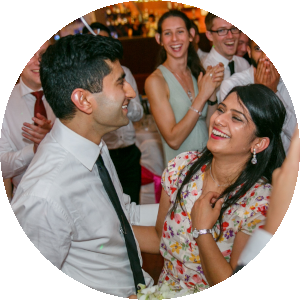
"We saved money on wedding photography by using PhotoStream.Live! During our reception we showed a live stream on a central projector. Everyone had a blast and we kept all the shared photos and videos."
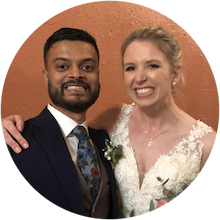
"Our guests had a ton of fun! Guests of all ages easily shared selfies, GIFs, videos and amazing photos. We got to keep them all - so cool to have so many perspectives of our wedding night."
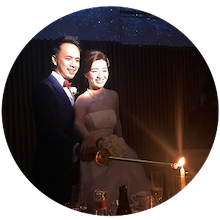
"We hosted our wedding in Japan with international and local guests. Friends around the world who couldn't make it tuned into the live stream and saw every photo and video in real time. Highly recommend!"
"Photostream.live was a cool way for guests to stay engaged at my wedding. Highly recommend!"
Try a Demo
Try out a live stream just like guests would use at your event. Share photos, videos and GIFs via MMS, or QR Guest Upload.
Simple event pricing
Every package includes guest posting tools, live stream controls and post-event insights. Choose based on event length, retention, moderation and stream branding.
Included in every package
The essentials are already included, so the main choice is how long your stream runs and whether you need moderation controls and stream branding.

Unlimited guests and uploads
Collect unlimited photos, videos and GIFs with no per-participant fees.
QR Guest Upload and MMS
Give guests a controlled QR posting page plus MMS posting where available.
Printable guest instructions
Download event-specific Letter, A4 and 4 × 6 cards with posting details and QR codes.
Live stream controls
Set the layout, image sizing, rotation, post details, instructions and QR display.
Posting insights
Review posting activity, channels, media types and contributor activity.
Gallery and download
Share a gallery link and download all shared media after the event.
Essentials
Standard
For shorter events that do not need moderation.
- Live stream duration
- Up to 3 days
- Photo retention
- 30 days
- Moderation
- Not included
- Stream branding
- Not included
- Participants
- Unlimited
- Uploads
- Unlimited photos, videos, GIFs
- MMS1 + QR code
- Included
- Gallery and download
- Included
You can upgrade to Complete later for the price difference, up until 24 hours before your event starts.
More control
Complete
For longer events where posts are moderated before going live.
- Live stream duration
- Up to 10 days
- Photo retention
- 1 year
- Moderation
- AI + Manual Moderation
- Stream branding
- Custom title, logo, background + accent color
- Participants
- Unlimited
- Uploads
- Unlimited photos, videos, GIFs
- MMS1 + QR code
- Included
- Gallery and download
- Included
Want to try it first?
Try Free Demo1 MMS only available in Canada and United States
Need something different?
We can provide custom packages to suit your exact needs. We also offer monthly subscriptions and multi-event
discounts.
Get in touch with us at
contact@photostream.live
for these options.
What you need

Internet Connection
You will need a reliable internet connection for the live photo stream to work.

Device
You will need a phone, tablet, laptop or computer. Any device that has a web browser can be used to access and display the live stream.

Screen or Projector
You may want to display the live stream on a larger screen or projector from your internet connected device.
FAQs
Your MMS number is assigned after payment and appears on your event page once it is ready. It is active for receiving posts from 2 hours before your live stream start time until 24 hours after it ends.
When you create your live stream you can choose the channels to receive posts (MMS, QR Guest Upload).
After you create your live stream you will have access to your exact posting instructions, typically this will look like:
MMS: MMS photos and videos to a number we assign for events in US/CA
QR Guest Upload: Scan the event upload QR code or open your Guest Upload page
It can be a good idea to share these instructions with your event participants ahead of time. A lot of live events who use our product
will print out instruction cards with these details and leave them on tables for guests to easily access. Every package includes printable PDF instruction cards
in Letter, A4 and 4 × 6 formats from your event management page - these include your event details, posting instructions and QR codes for easy guest access.
But this is definitely not required, these instructions will also rotate across the bottom of your live stream page, so event participants will
also be able to easily see them during your entire live stream and know where to send their posts to.
We don't provide any physical equipment or hardware, you will need to display the live stream on your own device.
You don't need much though, just an internet connected device such as a laptop or tablet which can be used
to display the live stream on any projector or bigger screen. As the live stream is just a unique page on our website
that we create for your event, just open it in any browser (we recommend Google Chrome) and display it on any screen, it's that easy!
Check out our setup instructions for detailed guidance on displaying your live stream.
There is no app to download! Just use our website to set-up and display your live stream. PhotoStream.Live is designed to make it super easy to post photos and videos without downloading an app. Your event participants can easily share photos and videos via MMS or QR Guest Upload.
You can create a live stream to run in any country! Please note that MMS numbers are only available for events in Canada and United States. Every country has access to QR Guest Upload, for receiving posts.
After you sign-up and create a live stream for your event you will have access to your live stream posting instructions. It can be a good idea to share these ahead of your event with guests. You can download event-specific Letter, A4 or 4 × 6 PDF instruction cards to display at your event, or guests can scan the QR codes on these cards to access instructions. During your live stream, these instructions will also rotate across the bottom of the live stream page. These instructions will include your MMS number, and QR Guest Upload details.
Yes. You can review and manage posts during and after your event, archive posts you do not want shown and restore them later. Your shareable gallery remains hidden until you choose to make it viewable, and you can download a ZIP file containing all shared photos, videos and GIFs.
Yes! Short videos and animated GIFs can be sent to your event live stream. Try out our free demo to try it out for yourself.
Photos, videos and animated GIFs can be posted to your event live stream. Each posting channel has restrictions and limitations for exactly what can be posted which is outlined here: detailed limitations of each channel.
The short answer is typically within a few minutes and most of the time within a minute or two. But this
depends on many factors, including your internet connectivity used to display the live stream, processing time of our service providers and a
number of other factors. If you are running AI moderation then this will add some delay to new posts appearing
on the live stream. As live posts arrive to the live stream they are queued and pushed to your live stream every 3 seconds, this is to
ensure a flood of live images arriving at the same time doesn't crowd the screen.
Note that some channels have limitations on posting, see detailed information about limitations for each channel.
With the Complete package, you have two options to control content posted to the live stream: AI moderation and manual moderation. If you are using
AI moderation, each post is checked for explicit content through Amazon's AI service and Google's
AI service. Any posts that are potentially not appropriate will be put into a manual moderation queue, to be approved before
they appear on your live stream. Please note that this is not a 100% reliable method. AI moderation will
also filter some legitimate posts as well (false positives) that will need to be manually moderated.
The other option is to run manual moderation, where you or someone else on your account will need to
manually approve each post before it appears on the live stream. If you need to be absolutely certain about
which posts make it to the live stream please select this option.
For posts that are already live, you can archive anything you no longer want shown and restore it later without permanently deleting it.
Unfortunately we can't guaruntee live support during your event. We are sure you won't need any help, our
product is designed to be very easy to use! Just create a live stream
and use the link in your account to display the live photo stream. That's it! Everything else will work automatically, guests
will see instructions on how to post rotating at the bottom of your live stream.
For help with displaying your live stream, see our setup instructions.
We are of course available to answer any questions you may have before your event, just reach out to us
at contact@photostream.live.
We offer two packages: Standard for USD $49 (3 day max live stream, 30 days photo retention) and Complete for USD $89 (10 day max live stream, 1 year photo retention). The Complete package includes additional features like AI moderation, manual moderation and stream branding (custom stream title, instruction message, logo, background and accent color). Both packages include unlimited participants and uploads, a dedicated MMS number1, QR Guest Upload controls, printable guest instructions, live stream controls, posting insights, gallery sharing and media download.
Started on Standard and changed your mind? You can upgrade an event to Complete yourself from your events dashboard or its Setup page, any time up until setup locks 24 hours before your event starts. You pay only the difference between the two package prices and the extra features switch on immediately.
QR Guest Upload gives your event a dedicated browser upload page. Guests can scan your event QR code and upload photos or videos directly from their phone without downloading an app. As the host, you can leave access open, require a password or require email verification. You can also collect guest names, set optional posting limits and choose whether guest captions appear on the live stream.
Every package lets you set the starting photo layout, image sizing, rotation order and timing, post details, instruction footer and how the guest upload QR code appears. Viewers can also make per-screen display adjustments from the live stream. With the Complete package, you can additionally customize the stream title, instruction message, logo, background and accent color.
Your event posting insights show total and live posts, archived posts, videos, captions, contributor activity, posting activity over time, channel usage and media types. You can also export the posting history as a CSV file when you need the underlying event record.
Yes! You can upload all your special memory photos before the event. During the live stream, these photos will cycle through with the live images, creating a beautiful mix of memories and real-time moments.
1MMS only available in Canada and United States
Start collecting your wedding photos
Set up the QR code before the day, put it on your tables and let your guests fill in everything your photographer could not be in the room for.
Still deciding how to collect them? Compare every method for gathering wedding guest photos.